The user interface is designed and tested to work best with Google Chorme ®. Alternatively also Firefox is reported to work well.
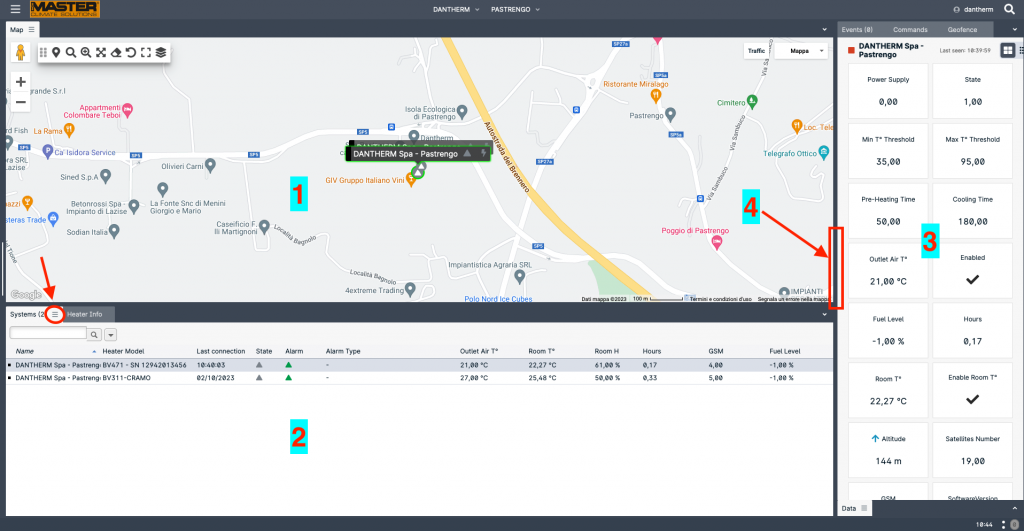
The user interface is composed by several panels, each carrying a specific piece of information.
(1) Map area with all the available systems in the current view. Each system is located in the last known position and with its status indicators.
(2) List of all the systems available in the current view, including the main parameters, such as room temperature, alarm, last connection, etc.
(3) Status of the selected system. All the parameter in this panel are related to the system selected in the Systems panel (2). To select a system just click it (mouse left button)
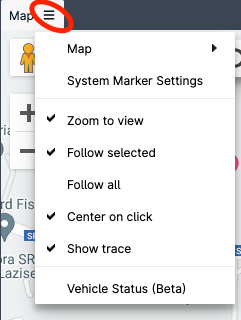
Each panel is identified by a label (Map, Systems, Heater Info, Commands…). If a three horizontal line icon is present near the label, additional options are available:
Panels (also called “tabs”) can be move around the interface in order to setup your own work space. To move a panel hold the mouse left button on the panel label and wait until the interface changes into edit mode and, still holding the mouse, position on the green lines:
To resize panels, move the cursor on the panel edge (4) and then drag as desired.
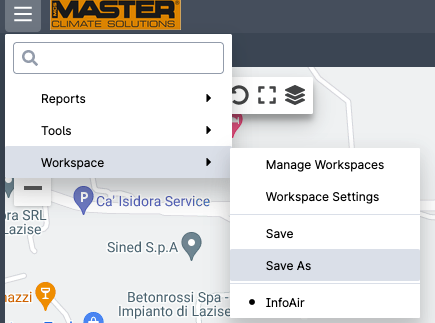
Once the interface is setup according to your needs, save your worksapce:
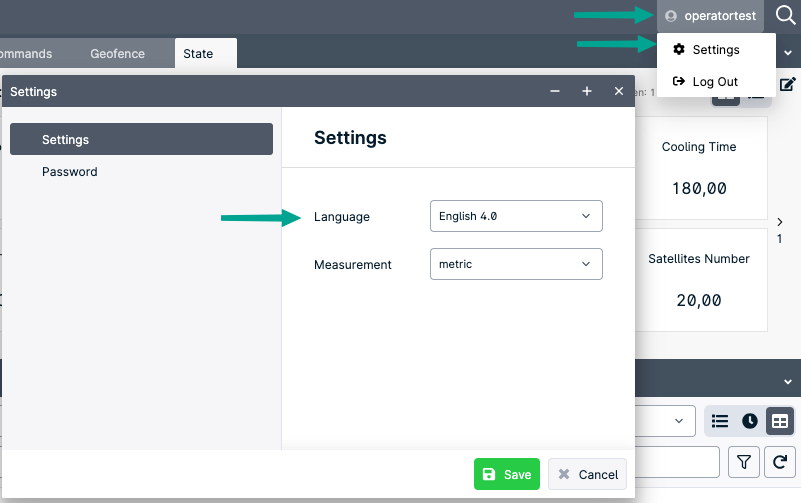
To change language or password select the user setting from the top right corner.